- HOME
- JOIN US
- FORUM
- OUR SERVERS
- OUR CLAN
- ADMIN ALERT
- CONTACT US
- DONATE
- WARS
- MATCHES
Endless loading tip
LATEST NEWS
- Welcome to the PBS GAMETEAM's website, WE ARE RECRUITING , JOIN FOR FREE!. JOIN US and get a FREE VIP slot on our servers! -
- Do you like our servers or site? Support us on this page -
- Do you have a question? contact us -
- Join our Discord! -
- Check our latest news about our PBS games on this link -
- Would you like to donate for our servers? Please check this link -
- We are the best HLL, ARMA, BB, RS2, MW3 community out there! Sign up today! -
- Like us on Facebook! -
- Like us on Twitter! -
- We have many new wars! Check and signup here pls -
- Join our latest community event #here! -
- This topic has 0 replies, 1 voice, and was last updated 6 years, 7 months ago by
 Powerbits.
-
AuthorPosts
-
-
04/03/2020 at 22:43 #37219
I just had a little hotfix in endless loading:
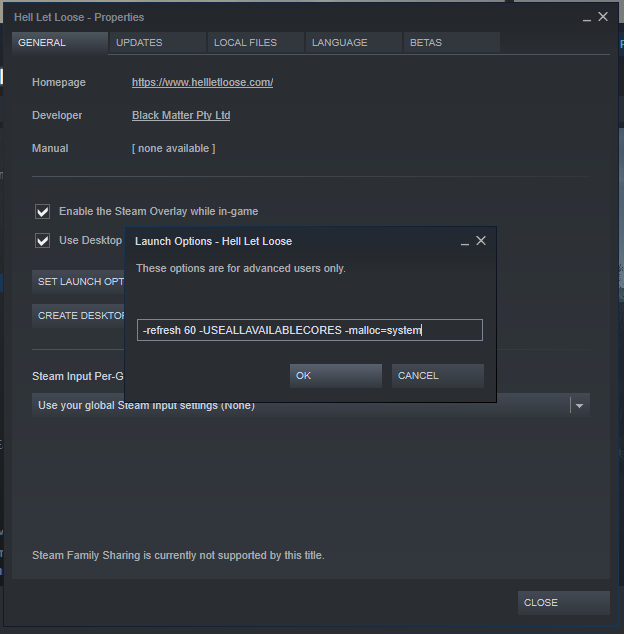
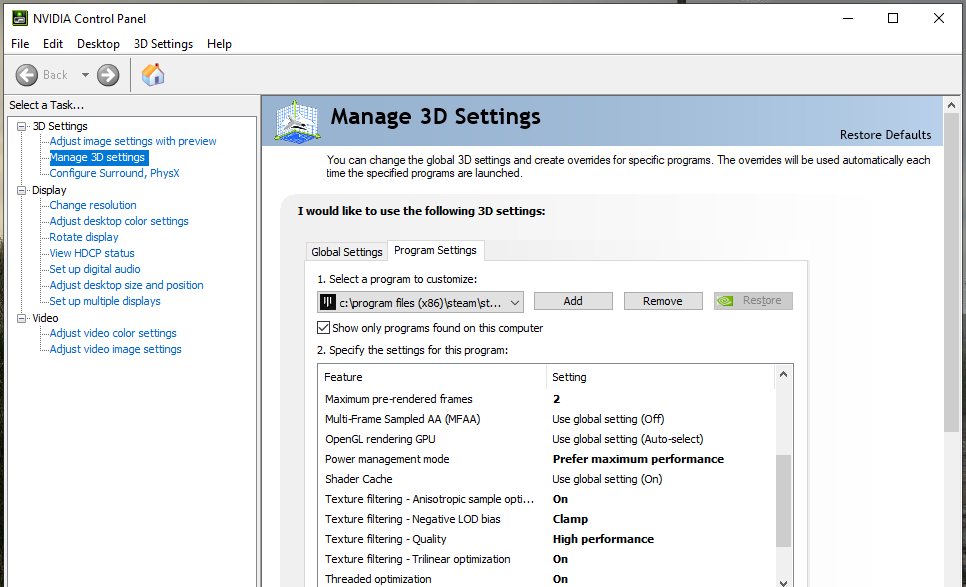
SET LAUNCH OPTIONS PARAMETERS (Right-click HLL in Steam library > Properties > Set Launch Options):-refresh (place the # of your refresh rate here without parenthesis, ex. “-refresh 60†for 60 Hz) -USEALLAVAILABLECORES -malloc=systemNVIDIA CONTROL PANEL PROGRAM SETTINGS:.EXE file is located in C:\Program Files (x86)\Steam\steamapps\common\Hell Let Loose\HLL\Binaries\Win64\Maximum pre-rendered frames: Use “2” or “3†if you have an slow CPU, or “1” for a good CPU
Power management mode: Set this to “Prefer maximum performance”
Texture filtering – Quality: Set this to “High Performance”
Threaded optimization: Set this to “On”
Vertical sync: Set this to “Off”
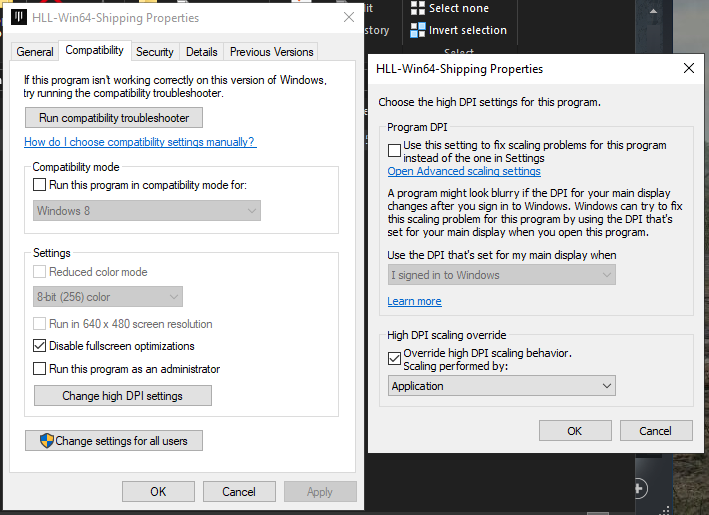
DISABLE FULLSCREEN OPTIMIZATIONS:1. Using the File Explorer, navigate to C:\Program Files (x86)\Steam\steamapps\common\Hell Let Loose\HLL\Binaries\Win642. Right-click “HLL-Win64-Shipping” > Properties > Compatibility Tab > Check the box where it says “Disable Fullscreen Optimizations”
3. After that, click on “Change high DPI settings” and check the box on the bottom where it says “Override high DPI scaling behavior”, and select “Application” on the drop down menu below it. Hit “Apply”, then “OK”.
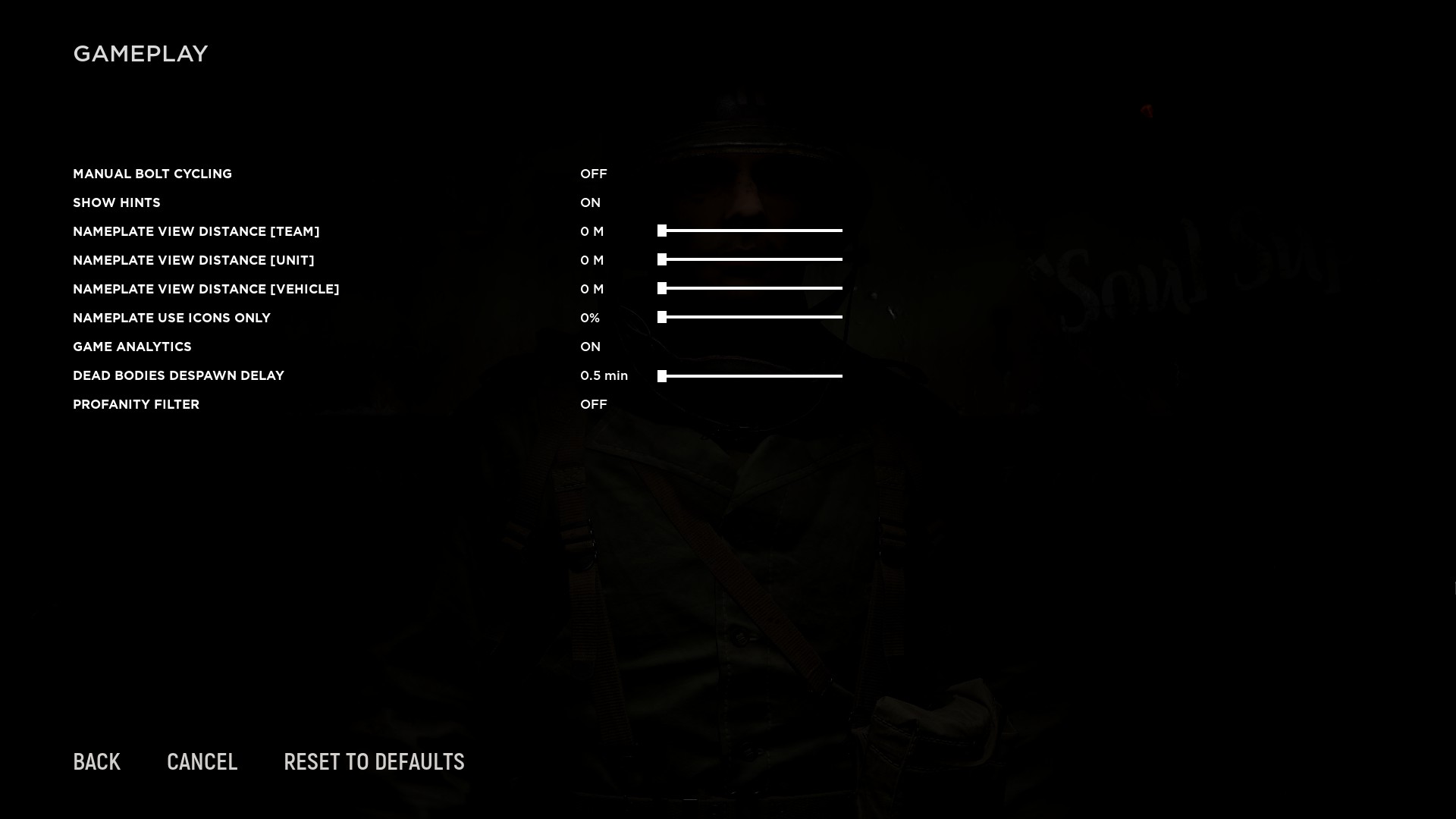
LOWER VIEW DISTANCE OF NAMEPLATES AND DESPAWN DELAY:Under the “Gameplay” options of the game, you can decrease the nameplate values and the dead bodies despawn delay value to the minimum (or preferred) in order to get a slight increase in performance!
-
-
AuthorPosts




Viewing 0 reply threads
- You must be logged in to reply to this topic.
© 2026 Powered by Powerbits 2022